How to Get It Working on Your Computer
If you’ve used Picsart on your phone for a while and now want it on a bigger screen, you already know the app is solid — filters, background removal, collages, all of it. But when you search “Picsart for PC,” most of what comes up is a bit misleading. There’s no official .exe file sitting on a download page waiting for you. There is a way to get it working on a computer though, and it’s actually not complicated once you know where to look.
I’ll walk through what actually works.
What Picsart Is, In Case You're New to It
It’s a photo and video editing app, originally built for phones, that’s turned into one of the more popular editing tools around. People use it for background removal, quick collages, AI image stuff, short video edits, and templates for things like Instagram stories. For years it was mobile-only. A web version came later, and that’s really the key to using it on desktop at all.
No, There's No Real Desktop App
Just to get this out of the way — you won’t find a Picsart installer like you would with something like VLC or Photoshop. If that’s what you were hoping for, it doesn’t exist right now. What does exist is a browser version that works pretty well, plus a couple of other routes if you want the mobile app specifically.
The Website Version (Simplest Route)
This is what I’d tell most people to just do. Open a browser, go to picsart.com, sign in with Google or Facebook (or make a free account, takes two minutes), then click Create or Edit a Photo. Upload your image and start working. No download, nothing installed, nothing to update later.
It’s basically the full editor, just running in a tab.
Using an Emulator If You Want the Mobile AppUsing an Emulator If You Want the Mobile App
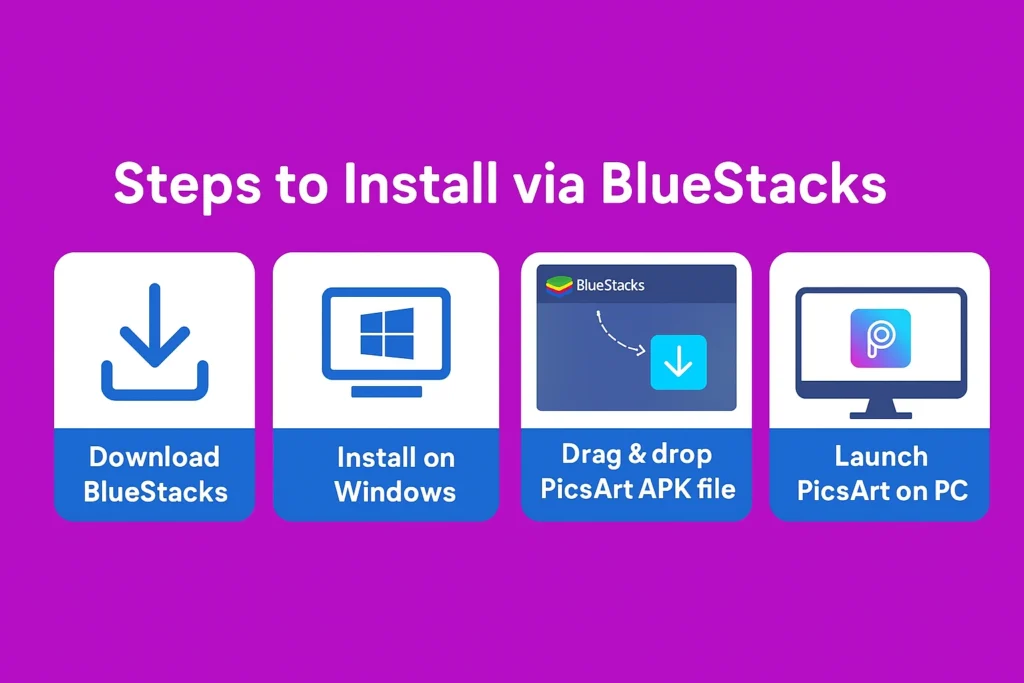
Some people don’t want the website — they want the exact app, same layout and everything, just bigger. For that you’d need an emulator like BlueStacks or LDPlayer.
Download and install one of those, sign into a Google account inside it once it’s set up, then open the Play Store from within the emulator and search for Picsart like you’re on a phone. Install it, log in, done.
It takes longer than the browser method — probably ten extra minutes total — but if you’re used to the mobile interface and don’t want to relearn anything, it’s the better option.
Microsoft Store (Sometimes)
Picsart occasionally shows up in the Microsoft Store depending on where you’re located. Worth checking, search “Picsart” there and see if it appears. If it does, install and log in the usual way. If it doesn’t show up for you, that’s normal — just use the website instead
Why People Bother Doing This At All
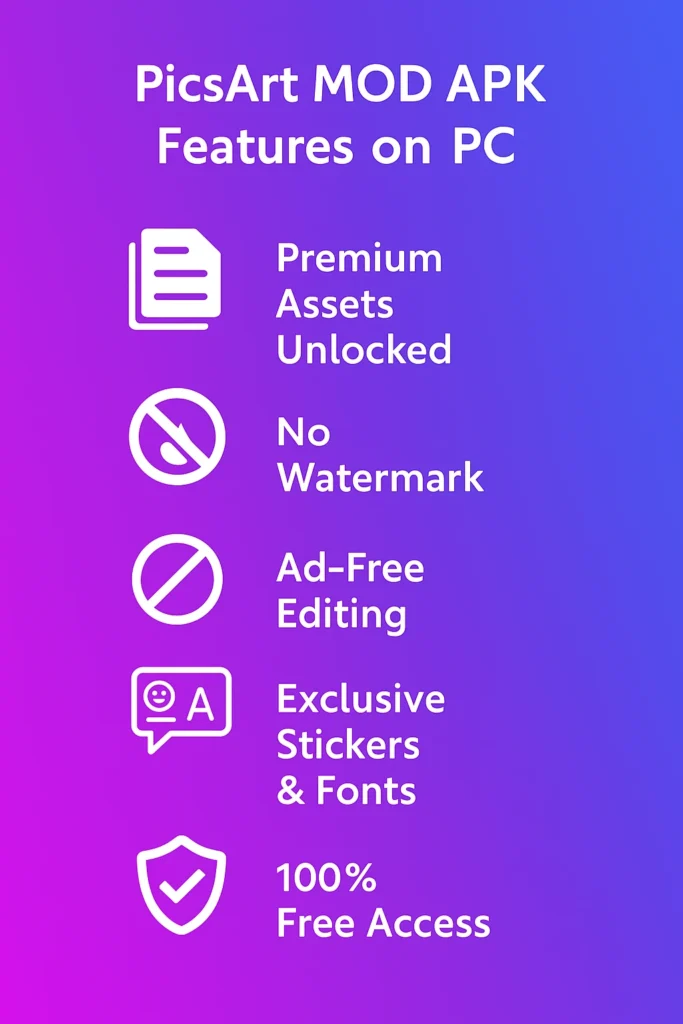
Mostly it comes down to screen size. Fine editing — cropping, small adjustments, layering — is just easier when you’re not squinting at a phone. Bigger files also process faster on a computer, and a mouse gives you more precision than a thumb ever will. Managing your photos is easier too, since you’re not digging through a camera roll every time.
What You Get Access To
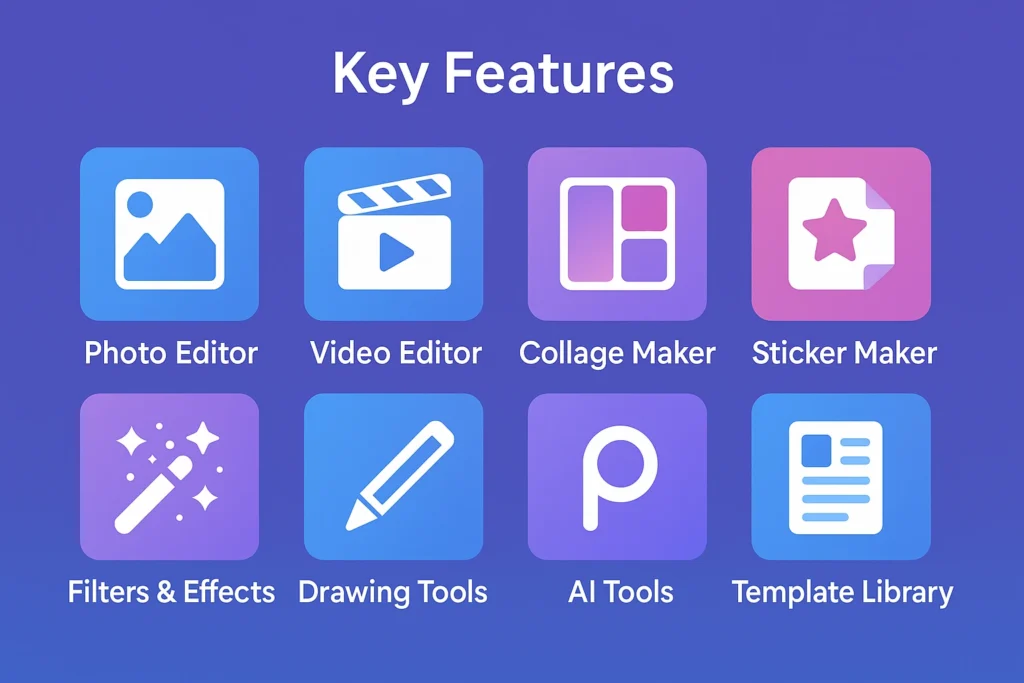
Background remover, AI photo tools, collage maker, sticker and text options, basic video editing, and a bunch of ready-made templates. Covers most of what people actually need day to day.
Cost
Free version covers a lot. If you want the fancier AI tools or background removal without a watermark, that’s locked behind Picsart Gold, their paid plan. Whether it’s worth paying for depends on how often you’d actually hit those limits — for casual use, the free tier is usually enough.
Other Options Worth Knowing
Picsart isn’t the only editor out there. Canva leans more toward design work than photo editing specifically. Photopea is free and browser-based, feels close to Photoshop if you’ve used that before. Adobe Express works fine for quick templated stuff, and Fotor covers similar ground to Picsart if you want to compare the two
So, Bottom Line
If you just want something quick with no setup, use the website — it’s genuinely the easiest path. If you specifically miss the mobile app and don’t mind a slightly longer setup, go the emulator route. Either way you end up with the same editing tools, just on a screen that doesn’t require you to zoom in every five seconds.